
A powerful, easily deployable network traffic analysis tool suite for network security monitoring
Running Hedgehog Linux on Raspberry Pi
Hedgehog Linux can be run on some models of the Raspberry Pi, providing a low-cost network sensor suitable for capturing traffic in networks with a smaller traffic footprint.
- Obtaining the Hedgehog Linux for Raspberry Pi Image
- Writing the Image to Flash Media
- Setting Passwords
- Configuration
- Performance Considerations
Obtaining the Hedgehog Linux for Raspberry Pi Image
The official Hedgehog Linux for Raspberry Pi image archive can be downloaded from GitHub. It can also be built easily on an Internet-connected system with Vagrant:
- Vagrant
bento/debian-13Vagrant box
The build should work with a variety of Vagrant providers:
- VMware provider
vagrant-vmware-desktopplugin
- libvirt
vagrant-libvirtprovider pluginvagrant-mutateplugin to convert thebento/debian-13Vagrant box tolibvirtformat
- VirtualBox provider
vagrant-vbguestplugin
To perform a clean build of the Hedgehog Linux Raspberry Pi image, navigate to your local Malcolm working copy and run:
$ ./hedgehog-raspi/build_via_vagrant.sh -f -z
…
Starting build machine...
Bringing machine 'vagrant-hedgehog-raspi' up with 'virtualbox' provider...
…
Building the image should take under 30 minutes on a native ARM64 system; however, if building on an amd64 platform, the process will involve cross-compiling for the ARM64 architecture and may take five or more hours depending on your system. When the build finishes, you will see the following message indicating success:
…
2024-01-21 05:11:44 INFO All went fine.
2024-01-21 05:11:44 DEBUG Ending, all OK
…
Writing the Image to Flash Media
The resulting .img.xz file can be written to a microSD card or other bootable media using the Raspberry Pi Imager or dd.
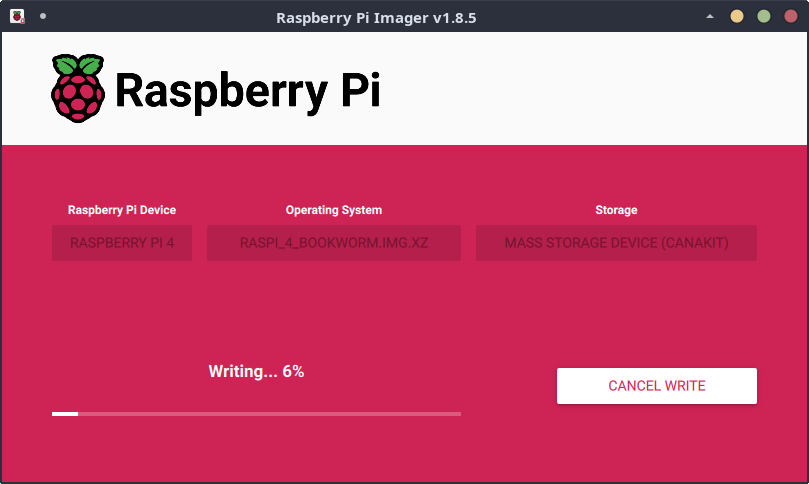
On the first boot, the system loads the embedded container images before displaying the login prompt, which may take several minutes. This one-time setup is not repeated on subsequent boots.
Setting Passwords
The provided image allows local login, requiring physical access, with the sensor account using the default password Hedgehog_Linux. On first login, the user is required to change this password. Login as root is disabled by default. After the sensor password has been changed, a root password may be set using sudo passwd root if desired.
Hedgehog-rpi-4 login: sensor
Password:
You are required to change your password immediately (administrator enforced).
Changing password for sensor.
Current password: **************
New password: ****************
Retype new password: ****************
sensor@Hedgehog-rpi-4:~$ sudo passwd root
[sudo] password for sensor: ****************
New password: ****************
Retype new password: ****************
passwd: password updated successfully
Configuration
Once Hedgehog Linux has booted, configuration can proceed using Malcolm’s ./scripts/configure script.
Since Hedgehog on Raspberry Pi does not have a graphical user interface, users should utilize NetworkManager’s command-line utilities such as nmcli or nmtui to configure network interfaces.
Performance Considerations
Due to the Raspberry Pi’s hardware and resource constraints, there are a few things to take into consideration:
- Compatible hardware — Hedgehog Linux will only run on Raspberry Pi 4B with 8GB RAM or higher.
- Network interfaces — Because the Raspberry Pi has only one Ethernet port, it is recommended to use a gigabit USB 3.0 Ethernet adapter (connected to one of the Pi’s USB 3.0 ports) to add a second network interface, so that one may be used for management and the other for capture.
- Network throughput — A Raspberry Pi running Hedgehog Linux should probably be used to monitor “quiet” (low-throughput) networks. The Packet Capture Statistics dashboard may help identify capture loss on the device.
- Feature set — Not every capture feature should be enabled when running Hedgehog on Raspberry Pi. Users experiencing poor performance may consider:
- Turning off automatic file extraction and scanning
- Not using Zeek intelligence if the number of indicators is large
- Disabling full PCAP capture (i.e., not enabling Arkime’s
capture,tcpdump, ornetsniff-ng), which would still provide network traffic metadata generated by Zeek and Suricata at the cost of not generating Arkime session records or storing the underlying full PCAP
- Storage media — Using faster storage (e.g., a SATA solid-state drive connected to the Pi’s USB 3.0 port via a USB 3.0-to-SATA adapter, or an NVMe M.2 SSD) for the Hedgehog Linux OS drive and capture artifact directories will result in much better performance than writing to a microSD card.